

Prompt Knowledge Base

The knowledge base shows you how to write better prompts so you get faster, more accurate, and more creative results from Pixic’s AI tools.

Chat

How to talk to the AI like a powerful assistant, including Deepsearch, file analysis, in‑chat image generation, and web/meta search.

Jump

Imagen

How to describe visuals so the AI produces the image that’s in your head.

Jump

Video

How to “direct” a video with words.

Jump

Using Chat Assistant

What to Use Chat Functions For

Use Chat functions when you want Pixic to help you with text or structured information.

  • Explain or learn – “Explain this topic to me like I’m a beginner.”
  • Write or edit – emails, blog posts, ads, landing pages, scripts, etc.
  • Brainstorm – ideas, titles, hooks, angles, campaign concepts.
  • Code help – debug, refactor, document code, or get examples.
  • Summarize or transform – turn long text into summaries, outlines, or bullet points.
  • Plan – content calendars, learning plans, strategies, roadmaps.
  • Search and analyze – use Deepsearch, file analysis, YouTube meta search, and Google search to work with large documents and external data.

Important: The clearer you are about what you want to achieve with the prompt, the better the result.

Choose the right LLM for your Task

LLM’s have different strengths, abilities and weaknesses. See the LLM characteristics here.

Instruction: Select the right LLM (AI model) for your task.
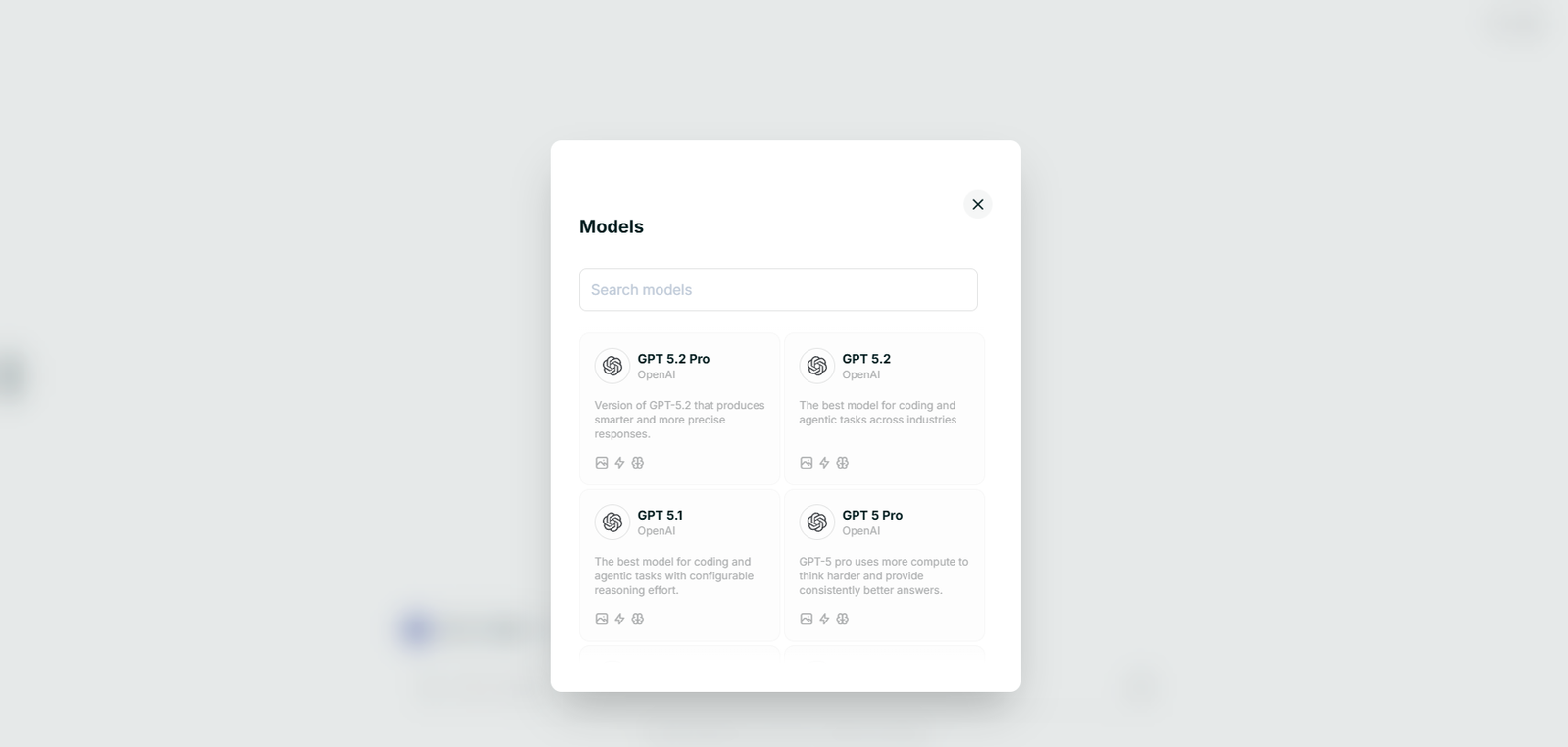
Pixic Chat LLM selection
How to Write a Good Chat Prompt (Step‑by‑Step)

Questions to ask

  • What do you want?
  • Who is it for?
  • What is the context?
  • How should it sound?
  • What format should the answer have?
1. State your goal
Start with a verb that matches your task.
Examples: Explain… Write… Summarize… Improve… Brainstorm… Translate… Debug… Argue with me…
Sample: Write a welcome email for new newsletter subscribers…
2. Add context and audience
Tell Chat Assistant about audience, channel, and domain.
Details: who it’s for, where it will be used, any domain.
Sample: Audience: non‑technical small business owners. Use as a LinkedIn post.
3. Define tone and style
Decide how it should sound.
Tone: friendly, professional, casual, formal, playful, persuasive, technical.
Style: bullet points, short paragraphs, step‑by‑step, Q&A, story.
Sample: Tone: professional but friendly. Style: short intro + bullet points + closing sentence.
4. Specify the output format
Tell Pixic how to structure the answer.
Examples: 3 paragraphs; 5 bullet points; table with columns; outline with H2/H3.
Sample: Give me a blog post outline: title + intro + 6–8 sections with 1–2 sentence descriptions.
5. Add constraints and must‑haves
Helps the model stay on target.
Examples: max 200 words, mention benefit X, avoid jargon, write in German, use UK spelling.
Sample: Keep it under 150 words and avoid buzzwords.
6. Iterate
Refine after the first answer.
Examples: Make this shorter. Make this more casual. Rewrite for a beginner audience. Give 3 alternatives with different hooks.
Chat Prompt Examples
Explaining a concept
Prompt: Explain machine learning to a non‑technical audience in simple terms.
Constraints: audience: small business owners; goal: why it matters; length: ~300 words; tone: friendly; format: short intro + 3 bullet points + closing.
Writing a customer email
Prompt: Write a professional but friendly email to a customer who asked about our social media management service.
Context: packages from $500 with content creation, scheduling, reporting; small e‑commerce owner.
Requirements: 3 short paragraphs; explain inclusions; mention price; invite 15‑minute call; confident CTA.
Code explanation and optimization
Prompt: I have this Python function that sorts a list, but it’s slow on large inputs…
Tasks: explain why slow; suggest efficient built‑in approach; provide improved code; keep under 150 words.
Blog post outline
Prompt: Help me create a blog post outline about “How Small Businesses Can Get Started with AI”.
Constraints: audience: small business owners; goal: low‑barrier steps; format: title, intro, 5–7 sections with descriptions, closing CTA.
Advanced Chat Usage: Deepsearch & Integrated Tools

Capabilities

  • Search and analyze large documents (Deepsearch)
  • Read and work with uploaded files (file analysis)
  • Generate images inside Chat
  • Analyze YouTube videos (via metadata and transcripts)
  • Use Google search to pull in up‑to‑date web information

Deepsearch

  • Upload long reports, policies, research, or multiple files
  • Need specific answers based only on those documents
  • Want to compare or cross‑reference content

Example: Use Deepsearch on the two HR policy PDFs I uploaded. Find all sections that mention “remote work” or “work from home”, summarize rules, highlight differences, keep under 300 words.

Other patterns: Search across all uploaded documents and summarize what they say about X. Based only on the attached contract, explain the cancellation terms in simple language.

File Analysis

Use file analysis when you upload a file and want Pixic to summarize, extract key points, or transform it.

  • Summarize it
  • Extract key points, metrics, or tables
  • Turn it into another format (slides, emails, outlines, FAQs)

Example: Analyze the PDF report I just uploaded. Give a 5‑bullet executive summary; list 3 key metrics; explain the recommendation under 150 words.

Slides example: Using the uploaded strategy document, create a 10–12 slide outline with titles and 3–4 bullets each, focus on outcomes.

Chat Assistant Checklist
  • ✅ Did I clearly state what I want (explain, write, summarize, analyze, etc.)?
  • ✅ Did I specify the audience and context?
  • ✅ Did I define tone and style?
  • ✅ Did I say how I want the answer structured (bullets, paragraphs, table, etc.)?
  • ✅ Did I mention any length limits or key points to include/avoid?

Advanced tools check: If I need advanced tools, did I clearly ask for Deepsearch, file analysis, in‑chat image generation, YouTube analysis, or Google search?

Using Imagen

What to Use Imagen For
  • Product mockups and marketing visuals
  • Illustrations, avatars, icons, and social media graphics
  • Concept art, fantasy scenes, character designs
  • Banners, headers, thumbnails, and hero images

If you can describe it in words, Imagen can help visualize it.

Choose the right Imagen model

You have 20+ Imagine models at your fingertips. To get the perfect result select the right one.
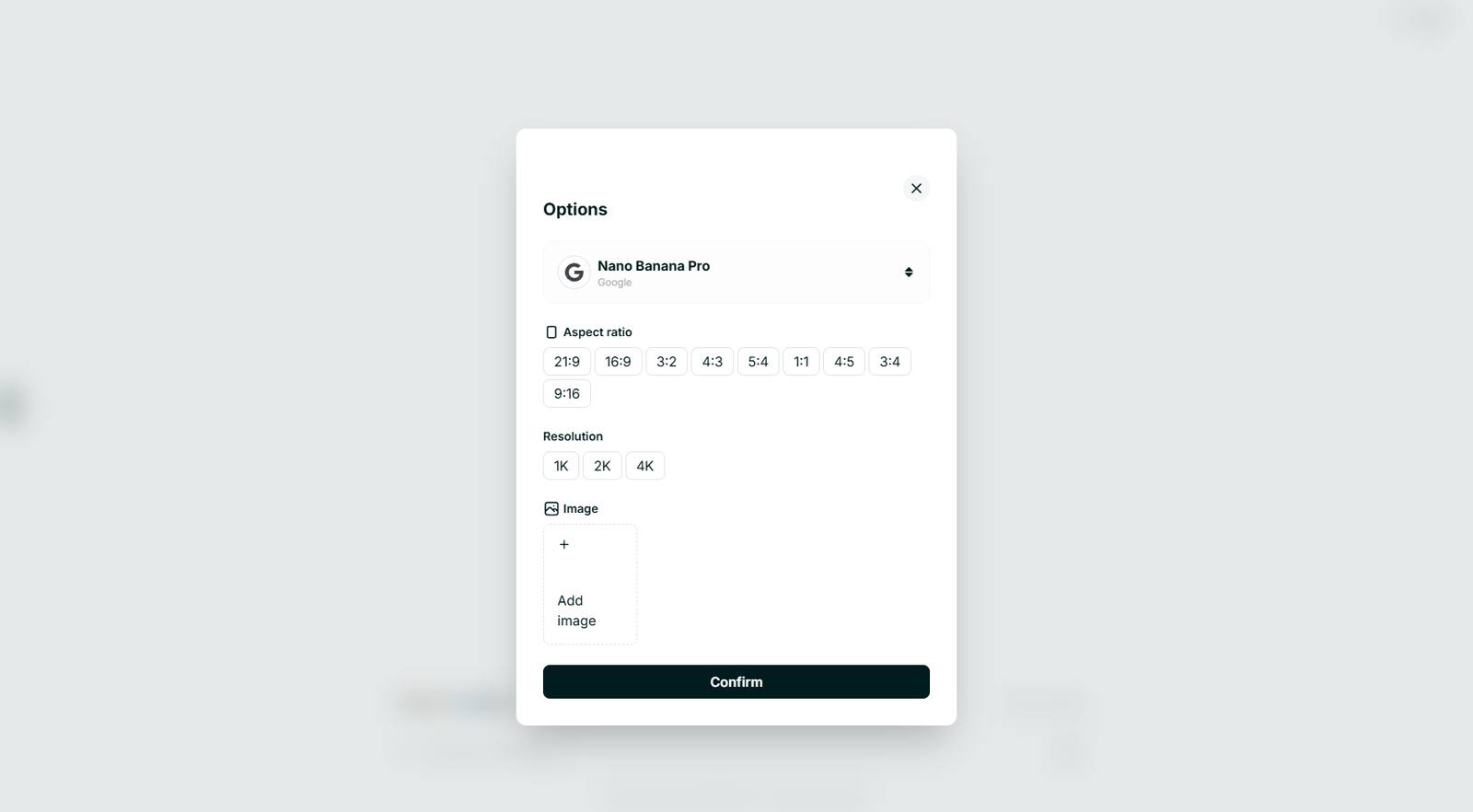
Pixic Imagen model selection
How to Write a Good Imagen Prompt (Step‑by‑Step)
1. Define the main subject
Examples: A matte black water bottle on a desk. A cartoon avatar of a software engineer. A futuristic city skyline at night.
2. Add visual details
Appearance, environment, time/mood, extra elements.
3. Choose a style
Type: photo‑realistic, digital painting, 3D render, cartoon, comic, pixel art, watercolor.
Genres: cyberpunk, fantasy, flat design, minimalism, isometric, retro.
Color/lighting: pastel, neon, warm, cool, high contrast, monochrome.
4. Control composition and camera
Camera distance, subject position, depth of field.
5. Aspect ratio and quality
Aspect ratio: 1:1, 16:9, 9:16. Quality: high resolution, sharp focus, detailed textures.
6. Iterate
After seeing the result, adjust details, style, or composition.
Imagen Prompt Examples
Product mockup (photo‑realistic)
Prompt: A photo‑realistic image of a matte black reusable water bottle standing on a light wooden desk next to a silver laptop and a small green plant in a white ceramic pot.
Details: soft window light, blurred office background, centered composition, high resolution.
Cartoon avatar
Prompt: A friendly cartoon avatar of a young software developer working at a desk.
Details: short dark hair, glasses, navy hoodie, cozy home office, flat 2D, pastel colors, waist‑up.
Fantasy concept art
Prompt: Epic fantasy landscape of a floating island with a crystal castle on top…
Details: golden hour, detailed digital painting, wide shot, dramatic lighting.
Website hero banner
Prompt: A modern, minimalistic hero banner illustration for an AI productivity startup.
Details: abstract shapes, gradient blue/purple, line‑art brain icon, empty space for text, 16:9.
Imagen Checklist
  • ✅ Did I clearly define the main subject?
  • ✅ Did I describe appearance, environment, and mood?
  • ✅ Did I choose a style (photo, illustration, 3D, etc.)?
  • ✅ Did I mention composition/camera angle if it matters?
  • ✅ Did I specify aspect ratio or quality if needed?

Using VideoGen

What to Use Video For
  • Product teasers and social media ads
  • Website hero background loops
  • Short explainer segments and animated scenes
  • B‑roll or background visuals for voiceovers
  • Simple animated loops for quotes or announcements
Select the right VideoGen model

Select the right VideoGen model and configuration.
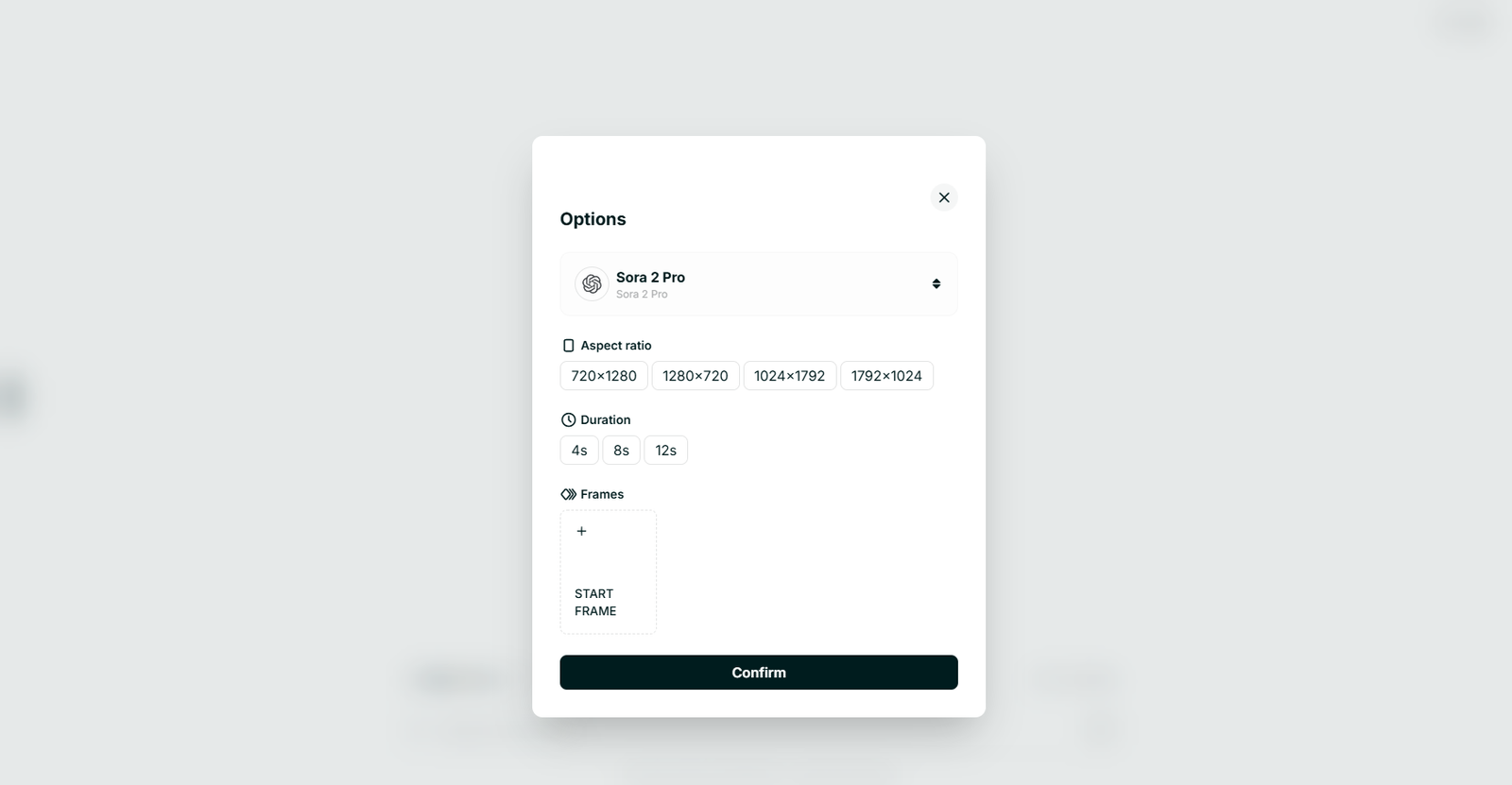
Pixic VideoGen model selection
How to Write a Good Video Prompt (Step‑by‑Step)
1. Purpose
Say what the video is for and roughly how long. Examples: looping background, product teaser, explainer segment.
2. Subjects and setting
Subject(s), environment, mood/time.
3. Motion and camera
What moves, how it moves, camera behavior, transitions.
4. Style
Type, colors, mood.
5. Aspect ratio and platform
Match target: 16:9, 9:16, 1:1. Mention where you’ll use it.
VideoGen Prompt Examples
Website hero background loop
Prompt: A seamlessly looping video for a tech startup website hero background.
Details: abstract flowing lines, smooth motion, modern minimal, soft blue/cyan, static camera, calm mood, 16:9.
2D animated explainer
Prompt: A 2D animated explainer‑style video showing how an AI assistant organizes a messy to‑do list.
Details: flat design, bright colors, glowing orb, smooth transitions, gentle zoom, 16:9.
Social media loop background
Prompt: A 6‑second looping vertical video background for motivational quote posts.
Details: sunlight through leaves, gentle movement, warm tones, soft focus, 9:16.
VideoGen Checklist
  • ✅ Did I define the purpose and approximate length?
  • ✅ Did I describe the main subjects and setting?
  • ✅ Did I explain what moves and how (subject and camera)?
  • ✅ Did I define the style and mood?
  • ✅ Did I specify aspect ratio and platform (YouTube, TikTok, website, etc.)?

Ready to put your knowledge to work?

Start using Pixic Chat, Imagen, and VideoGen today—free to get started.

Get Started Free Explore PRO features
No credit card required • 500 free credits • Cancel anytime